

Google Colab and Cloud Shell
Open a notebook in Google Colab and run this setup cell before importing analysis packages. Run it again whenever Colab assigns a new runtime.
The setup script installs the container tools, Lmod, DataLad and git-annex, mounts the Neurodesk software repository, and writes the environment settings used by the notebook. It also keeps the Python dependencies compatible with Colab.
import jsonimport osfrom pathlib import Pathimport subprocessimport sys
setup_url = 'https://raw.githubusercontent.com/NeuroDesk/neurocommand/main/googlecolab_setup.sh'subprocess.run(['curl', '-fsSL', setup_url, '-o', '/content/googlecolab_setup.sh'], check=True)with open('/content/neurodesk-setup.log', 'w') as log:    result = subprocess.run(        ['bash', '/content/googlecolab_setup.sh'],        env=dict(os.environ, NEURODESK_COLAB_PYTHON=sys.executable),        stdout=log, stderr=subprocess.STDOUT,    )if result.returncode:    print(Path('/content/neurodesk-setup.log').read_text()[-6000:])    result.check_returncode()os.environ.update(json.loads(Path('/content/neurodesk-colab-env.json').read_text()))print('Neurodesk is ready. Full log: /content/neurodesk-setup.log')
The final os.environ.update(...) imports the settings into the running Python kernel. Running the shell script alone cannot change the notebook’s environment. If setup fails, the cell displays the end of the installation log and stops.
Once this setup is completed, you can list the available Neurodesk applications like this:
import lmodawait lmod.avail()and use applications like this:
await lmod.load('fsl/6.0.4')!betDataLad and git-annex are ready after setup; no separate installation cell is needed. Check their versions with:
!datalad --version!git annex versionUse lowercase datalad for the command. The script installs DataLad separately from Lmod so an unavailable Ubuntu DataLad package cannot prevent Neurodesk modules from loading.
This notebook demonstrates how to use all Neurodesk applications in Google Colab: colab.research.google.com/drive/1g5cnZxj1llRaHmOs4xSglqsXnFkQYuol.
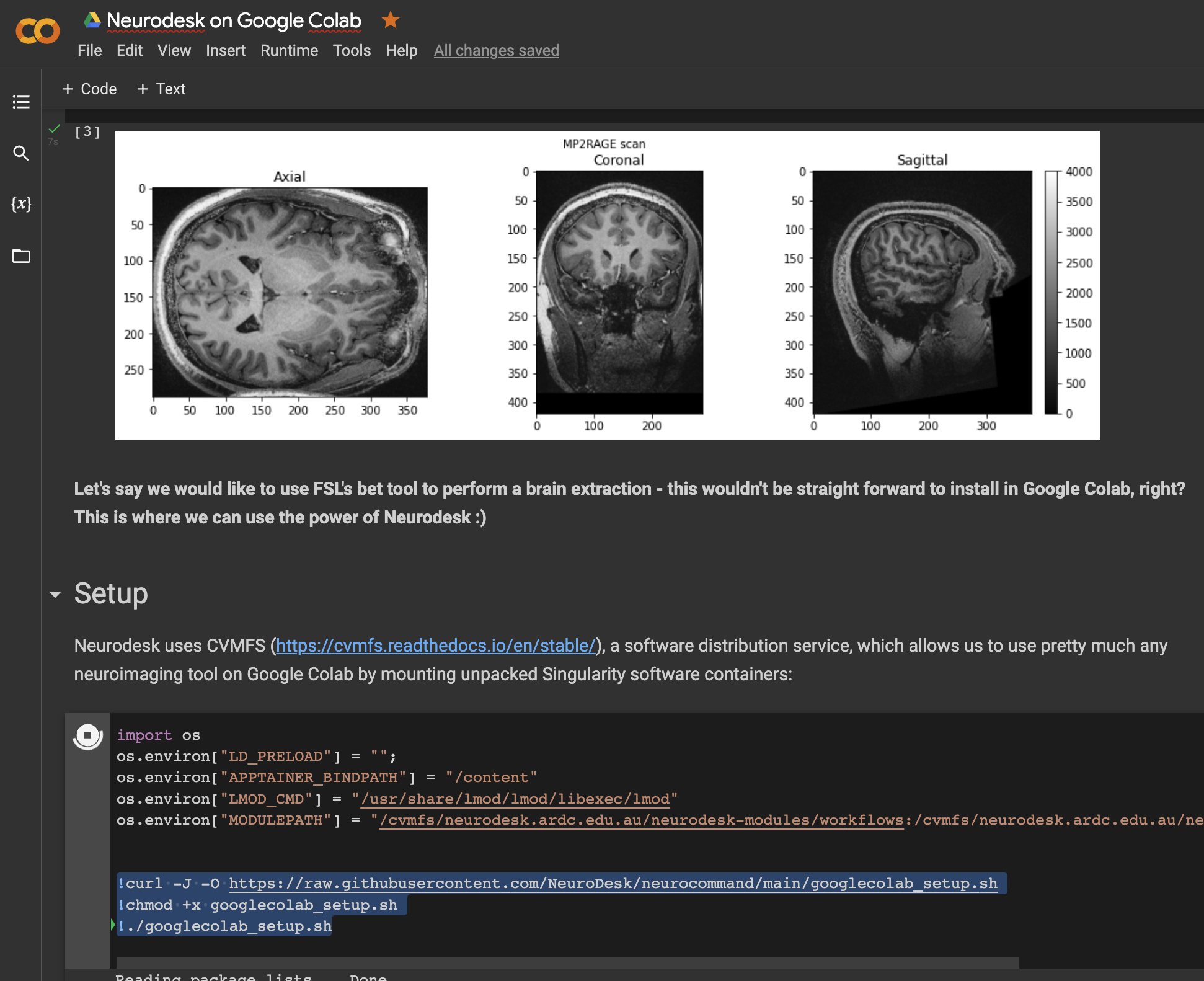
This is a Google Colab notebook that shows how to integrate with Google Drive and contains an example for running fMRIprep in Google Colab: colab.research.google.com/drive/11wVBkjNvrzo2TkUAILtWnPumAeFAfqkl.
More examples can be found in our example library.
This also works in a Google Cloud Shell, for example for an interactive tutorial via cloudshell launch-tutorial.
First, run this:
curl -J -O https://raw.githubusercontent.com/neurodesk/neurocommand/main/googlecloudshell_setup.shchmod +x googlecloudshell_setup.sh./googlecloudshell_setup.shThen use a tutorial.md like:
# My first fsl tutorial in Cloud Shell
## Step 1: Say HelloRun the following command to print a message:
```bashmodule use /cvmfs/neurodesk.ardc.edu.au/neurodesk-modules/*ml fslbet```
The tutorial can be started via:
cloudshell launch-tutorial tutorial.mdOr via a URL:
https://ssh.cloud.google.com/cloudshell/editor?cloudshell_git_repo=REPO_URL&cloudshell_tutorial=path/to/tutorial.mdwhere cloudshell_git_repo is the URL of the Git repository to clone and cloudshell_tutorial is the relative path to the markdown file inside that repo.