

OpenRecon
Build an OpenRecon/FIRE package
Section titled “Build an OpenRecon/FIRE package”Choose a development environment
Section titled “Choose a development environment”| Development path | Complete these setup sections | Continue at |
|---|---|---|
| Local workstation | 1. Set up a local computer; 2. Fork and set up Neurocontainers locally | 4. Complete example |
| GitHub Codespaces | 3. Set up Neurocontainers in GitHub Codespaces | 4. Complete example |
1. Set up on a local computer
Section titled “1. Set up on a local computer”You need Git, Docker, Python 3.13, and Visual Studio Code. A GitHub account is required when you are ready to fork repositories, use Codespaces, or submit changes.
This was tested with Python 3.10 to 3.13.
Windows
Section titled “Windows”Use WSL 2 with a Linux distribution such as Ubuntu. Install Docker Desktop with its WSL 2 backend and enable integration for that distribution. Install the VS Code WSL extension, open the checkout from WSL with code ., and run every command in this guide in the WSL terminal.
Keep the checkout in the WSL filesystem, for example under ~/src, rather than under /mnt/c; Docker bind mounts perform better there. Do not run the Bash build scripts from Command Prompt or PowerShell.
Install Python 3.13 inside the WSL distribution. If the distribution does not provide Python 3.13, use the uv option described under Linux below.
Install Docker Desktop and start it. Install Git, Python, and 7-Zip with your preferred package manager. Example with Homebrew (https://brew.sh):
# To install homebrew in case you don't have it yet:/bin/bash -c "$(curl -fsSL https://raw.githubusercontent.com/Homebrew/install/HEAD/install.sh)"brew install git python@3.13 p7zipInstall Git, Python 3.13 with venv support, 7-Zip, and Docker Engine using your distribution’s instructions. Configure Docker so your normal user can run it, then log out and back in if the group membership changed.
For Debian or Ubuntu, the prerequisites are:
sudo apt updatesudo apt install -y git curl p7zip-fullIf your distribution does not package Python 3.13, install it with uv:
curl -LsSf https://astral.sh/uv/install.sh | shexport PATH="$HOME/.local/bin:$PATH"uv python install 3.13Verify the fundamentals
Section titled “Verify the fundamentals”Open a new terminal and check each tool before cloning the source:
git --versionpython3.13 --versiondocker versiondocker run --rm hello-worlddocker buildx versiondocker run --rm --platform linux/amd64 alpine uname -mConfigure the identity Git will record in your commits:
git config --global user.name "YOUR NAME"git config --global user.email "YOUR GITHUB EMAIL"The Python command must report 3.13.x, and the last Docker command should print x86_64. If docker version cannot reach the server, start Docker Desktop or the Linux Docker service before continuing.
2. Fork and set up Neurocontainers locally
Section titled “2. Fork and set up Neurocontainers locally”Fork neurodesk/neurocontainers into your GitHub account, then clone your fork. Replace YOUR_GITHUB_USERNAME below:
git clone https://github.com/YOUR_GITHUB_USERNAME/neurocontainers.gitcd neurocontainersgit remote add upstream https://github.com/neurodesk/neurocontainers.gitgit switch -c add-MYPROJECT-openreconCreate an isolated Python environment and install these dependencies:
python3.13 -m venv .venvsource .venv/bin/activatepython --version  # Must report Python 3.13.xpython -m pip install --upgrade pippython -m pip install -r requirements.txtpython -m pip install -e .
sf-build --help
Activate the environment with source .venv/bin/activate whenever you open a new terminal.
3. Set up Neurocontainers in GitHub Codespaces
Section titled “3. Set up Neurocontainers in GitHub Codespaces”Use this section instead of sections 1 and 2 when Docker and Python are not available on your computer.
-
Make sure your fork’s
mainbranch is up to date, then select Code > Codespaces > Create codespace on main. The repository’s development-container configuration installs Python 3.13, creates theenvvirtual environment, installs Neurocontainers, and connects the codespace to a Docker daemon. -
When setup finishes, create a new branch, activate the environment, and verify both Neurocontainers and Docker:
Terminal window git switch -c add-MYPROJECT-openreconsource env/bin/activatepython --version # Must report Python 3.13.xpython -m builder --helpsf-build --helpdocker infodocker run --rm hello-world -
Continue with section 4. The
openreconi2iexamplerecipe,fulltest.yaml,sf-login, and MRD server/client commands are the same as in a local Linux environment. -
Use the preinstalled H5Web extension to inspect
.h5outputs and niivue for.nii. -
Never upload identifiable DICOM data to the codespace or commit private test data.
A codespace is an interactive, time-limited development environment. GitHub’s default idle timeout is 30 minutes and the maximum user-configurable timeout is 4 hours; when a codespace stops, its running processes stop too. Use the pull-request workflow in section 9 for builds that must continue unattended.
4. Complete example: build and run openreconi2iexample
Section titled “4. Complete example: build and run openreconi2iexample”Run this example before creating your own recipe. All commands in this section start in the root of your neurocontainers checkout with its Python 3.13 environment active. For a local checkout, run:
cd /PATH/TO/neurocontainerssource .venv/bin/activatepython --version # Must report Python 3.13.xIn GitHub Codespaces, the checkout is already under /workspaces and the configured environment is named env:
cd /workspaces/neurocontainerssource env/bin/activatepython --version # Must report Python 3.13.xOptional: validate the example
Section titled “Optional: validate the example”Validate the recipe and scanner label, then run its focused Python tests:
python builder/validation.py \  recipes/openreconi2iexample/build.yaml --verbose
python workflows/validate_openrecon_labels.py \  recipes/openreconi2iexample/OpenReconLabel.json
python -m pytest \  recipes/openreconi2iexample/test_openreconi2iexample.py -q
Check the bundled DICOM test data
Section titled “Check the bundled DICOM test data”The archive is approximately 9 MB and contains 160 .IMA DICOM files. The conversion will create a much larger local MRD file, so keep generated data under local-test. The following exclusion is local to your checkout and does not modify the repository’s shared .gitignore:
grep -qxF 'recipes/openreconi2iexample/local-test/' .git/info/exclude || \  echo 'recipes/openreconi2iexample/local-test/' >> .git/info/exclude
mkdir -p recipes/openreconi2iexample/local-test
Build the x86_64 image and enter it
Section titled “Build the x86_64 image and enter it”sf-login stages the recipe, builds openreconi2iexample:<version> for linux/amd64, mounts the recipe directory at /buildhostdirectory, and opens a shell in the new container:
sf-login openreconi2iexample --recreate --architecture x86_64The first build can take a while. On Apple Silicon or another ARM64 host, Docker runs this x86_64 image through emulation.
Inside the container, verify the installed example and server:
openreconi2iexamplepython3 /opt/code/python-ismrmrd-server/main.py --help | headThe first command should print openreconi2iexample followed by the current recipe version.
Convert the bundled DICOM data to an ISMRMRD HDF5 file
Section titled “Convert the bundled DICOM data to an ISMRMRD HDF5 file”The recipe directory is mounted at /buildhostdirectory, so both committed test assets are available inside the container. First extract the archive there using Python’s standard-library ZIP support:
python3 -m zipfile -e \  /buildhostdirectory/GR_M_5_QSM_p2_1mmIso_TE20.zip \  /buildhostdirectory/local-test/dicom
find /buildhostdirectory/local-test/dicom -type f \  \( -iname '*.ima' -o -iname '*.dcm' \) | wc -l
The count should be 160. Now run the recipe-local dicom2mrd.py inside the container. It reads the DICOM tree recursively and writes image MRD data to the dataset group in an ISMRMRD HDF5 file:
python3 /buildhostdirectory/dicom2mrd.py \ -o /buildhostdirectory/local-test/input_data.h5 \ -g dataset \ /buildhostdirectory/local-test/dicomThe converter should report one series containing 160 images. Verify the resulting file /buildhostdirectory/local-test/input_data.h5 before starting the server by opening it in the H5Web hdf viewer inside VScode.
The generated HDF5 file remains on the host under recipes/openreconi2iexample/local-test/input_data.h5 after you exit the container.
Start the MRD server and run the client
Section titled “Start the MRD server and run the client”Still inside the container, write the parameter payload that reproduces the scanner label’s default behaviour:
cat > /buildhostdirectory/local-test/openreconi2iexample.json <<'JSON'{ "parameters": { "sendoriginal": true, "invert": true, "segment": true, "segmentheadergeometry": "2d_segment_header" }}JSONThe MRD client automatically sends this file as additional configuration because its basename matches -c openreconi2iexample. Start the server in the background, send the input, and stop the server afterward:
python3 /opt/code/python-ismrmrd-server/main.py \  -v -r -H=0.0.0.0 -p=9002 -s -S=/tmp/share/saved_data \  > /buildhostdirectory/local-test/server.log 2>&1 &server_pid=$!trap 'kill "$server_pid" 2>/dev/null || true' EXITsleep 2
cd /buildhostdirectory/local-testpython3 /opt/code/python-ismrmrd-server/client.py \  -G dataset \  -o openrecon_output.h5 \  input_data.h5 \  -c openreconi2iexample
kill "$server_pid" 2>/dev/null || truewait "$server_pid" 2>/dev/null || truetrap - EXIT
This explicit parameter payload sends original images, inverted images, and a simple foreground segmentation. For a straightforward single-series magnitude input, expect output groups image_99, image_100, and image_101. More complex inputs can be split into additional groups.
Open recipes/openreconi2iexample/local-test/openrecon_output.h5 with the VS Code H5Web extension to inspect the returned images.
Exit the container, run the deploy smoke test against the image, and prove that the expected local tag exists:
exit
sf-test openreconi2iexample --architecture x86_64
Build the example OpenRecon and FIRE packages
Section titled “Build the example OpenRecon and FIRE packages”This checkout is for local package builds, which do not require a fork or a push to OpenRecon. To contribute changes directly to OpenRecon, follow Fork OpenRecon for packaging changes before cloning.
From the directory containing your neurocontainers checkout, clone the packaging repository and create its Python 3.13 environment:
cd ..git clone https://github.com/neurodesk/openrecon.gitcd openrecon
python3.13 -m venv .venvsource .venv/bin/activatepython --version  # Must report Python 3.13.xpython -m pip install --upgrade pippython -m pip install jsonschema packaging
The checked-in recipes/openreconi2iexample/params.sh must name the same version you just built. Assert that it matches before starting the package build.
Build both scanner formats from the local Docker image:
cd recipes/openreconi2iexample/bin/bash ../build.sh --local-cacheThe OpenRecon zip is installable through the OpenRecon package mechanism; the FIRE directory contains its Ice tree and INSTALL_FIRE.txt.
Once this complete example works, return to your Neurocontainers checkout and adapt the recipe for your own application.
5. Create a new Neurocontainer recipe
Section titled “5. Create a new Neurocontainer recipe”Use a short lowercase name containing only letters and numbers, for example myrecon. Published OpenRecon recipe names must not contain underscores.
For a new image-to-image application, start from openreconi2iexample. For a new kspace-to-complex-image application, start from sodiumgridding.
cp -R recipes/openreconi2iexample recipes/myreconmv recipes/myrecon/openreconi2iexample.py recipes/myrecon/myrecon.pymv recipes/myrecon/test_openreconi2iexample.py recipes/myrecon/test_myrecon.pycode recipes/myreconUse VS Code’s search-and-replace to change openreconi2iexample to myrecon, then adapt the copied files.
Your recipe should include at least:
build.yaml: container name, version, x86_64 architecture, dependencies, files, and build directives;- your Python MRD application module;
OpenReconLabel.json: resource requirements, and user parameters;OpenReconREADME.md: scanner-facing documentation that becomes the package README/PDF;fulltest.yaml: CI runtime tests for the released container; and- focused tests for the application logic where practical.
The recipe must install the Python MRD server macro:
architectures:  - x86_64
build:  kind: neurodocker  base-image: ubuntu:22.04  pkg-manager: apt  directives:    - include: macros/openrecon/neurodocker.yaml
Declare application files in the top-level files list and copy them into /opt/code/python-ismrmrd-server in a build directive. Keep the following identities synchronized:
nameandversioninbuild.yaml;nameandversioninfulltest.yaml;- the package
idand theconfigchoice/default inOpenReconLabel.json; and - the Python module name passed to the MRD client with
-c.
The OpenRecon 1.1.0 schema allows at most 14 parameters, including config. Every choice parameter must have a non-empty default that exactly matches one of its value IDs.
Keep VERSION_WILL_BE_REPLACED_BY_SCRIPT in the label’s version and version-derived regulatory fields. The packaging build replaces this placeholder with the version from params.sh before validating and assembling the package.
Keep OpenReconLabel.json in the Neurocontainers recipe. Current release automation copies it into OpenRecon and creates params.sh; contributors no longer need to maintain a second copy manually. If OpenReconREADME.md is present, the automation also copies it to the openrecon package repository as README.md.
6. Validate, build, and test the Neurocontainer
Section titled “6. Validate, build, and test the Neurocontainer”Run metadata validation and any focused tests first:
python builder/validation.py recipes/myrecon/build.yaml --verbosepython workflows/validate_openrecon_labels.pypython -m pytest recipes/myrecon/test_*.py -qBuild the scanner-compatible x86_64 image and open an interactive shell in it:
sf-login myrecon --recreate --architecture x86_64On an Apple Silicon or ARM64 host, Docker emulates linux/amd64; the build can therefore be slower than a native x86_64 build. The recipe directory is mounted in the container at /buildhostdirectory.
Test the application through the MRD server
Section titled “Test the application through the MRD server”Start with a known MRD .h5 input whenever possible. To convert legacy DICOM inside the container:
mkdir -p /buildhostdirectory/local-testcd /opt/code/python-ismrmrd-serverpython3 dicom2mrd.py \ -o /buildhostdirectory/local-test/input.h5 \ /buildhostdirectory/local-test/dicomEnhanced DICOM conversion is still pending upstream in python-ismrmrd-server PR 15. Until it is merged, examples of the additional converters are available as enhanceddicom2mrd.py and nifti2mrd.py. If your application needs them, declare and copy them in build.yaml.
Inside the container, start the server and send the test dataset through your configuration:
python3 /opt/code/python-ismrmrd-server/main.py \  -v -r -H=0.0.0.0 -p=9002 -s -S=/tmp/share/saved_data &sleep 2
python3 /opt/code/python-ismrmrd-server/client.py \  -G dataset \  -o /buildhostdirectory/local-test/output.h5 \  /buildhostdirectory/local-test/input.h5 \  -c myrecon
Confirm that the client reports the expected number and type of returned images. Inspect output.h5 with the vscode H5Web extension and inspect any NIfTI intermediates with a NIfTI-capable viewer (e.g. niivue). Test every OpenReconLabel.json option and important option combination.
Exit the container and run the builder’s deploy smoke test against the image you just built:
exitsf-test myrecon --architecture x86_64sf-test checks the built image’s deployment contract. Your fulltest.yaml is exercised by the current pull-request candidate workflow; it should contain meaningful application/runtime assertions.
7. Build OpenRecon and FIRE packages
Section titled “7. Build OpenRecon and FIRE packages”First build the Neurocontainer as described above. The local Docker image must be tagged myrecon:<version>, which is the tag produced by sf-build and sf-login.
If you already cloned OpenRecon in section 4, reuse that checkout and activate its .venv environment. Local package builds do not require a fork or a push. To contribute changes directly to OpenRecon, follow Fork OpenRecon for packaging changes.
Otherwise, clone the packaging repository next to your Neurocontainers checkout:
cd ..git clone https://github.com/neurodesk/openrecon.gitcd openrecon
python3.13 -m venv .venvsource .venv/bin/activatepython --version  # Must report Python 3.13.xpython -m pip install --upgrade pippython -m pip install jsonschema packaging
Create recipes/myrecon and copy the scanner metadata from your Neurocontainers recipe:
mkdir -p recipes/myreconcp ../neurocontainers/recipes/myrecon/OpenReconLabel.json recipes/myrecon/cp ../neurocontainers/recipes/myrecon/OpenReconREADME.md recipes/myrecon/README.mdCreate recipes/myrecon/params.sh with the same name and version as build.yaml:
#!/bin/bashexport toolName=myreconexport version=1.0.0export baseDockerImage=vnmd/${toolName}_${version}The build checks the local Docker cache first, including myrecon:1.0.0, and falls back to baseDockerImage only when no matching local image exists. From the package recipe directory, request both artifacts:
cd recipes/myrecon/bin/bash ../build.sh --local-cacheThe packager runs a privileged nested Docker build for linux/amd64 and needs substantial temporary disk space. It also renders README.md to PDF. If mdpdf is unavailable, the build installs the required Node/NVM tooling; --ignore-mdpdf is useful only when the recipe already supplies docs.pdf or README.pdf.
The build runs as linux/amd64 and produces:
recipes/myrecon/openrecon/OpenRecon_<vendor>_<name>_V<version>.ziprecipes/myrecon/fire/FIRE_<vendor>_<name>_V<version>/The FIRE output is a directory containing an Ice tree and INSTALL_FIRE.txt. Keep the directory structure unchanged.
Codespaces notes
Section titled “Codespaces notes”If you used the Codespaces setup in section 3, the commands above work without modification: from /workspaces/neurocontainers, cd .. moves to /workspaces, where you can clone the OpenRecon repository.
FIRE images can be large and Codespaces storage is small. Check df -h before building both packages, select a larger codespace if necessary, and stop or delete the codespace when you finish to avoid unnecessary usage.
8. Install and test the scanner package
Section titled “8. Install and test the scanner package”Use the package produced in section 7 for local scanner testing. The same installation procedures apply to an artifact published later through the GitHub Actions flow in section 9.
Install an OpenRecon package
Section titled “Install an OpenRecon package”Make sure that no protocol is open, because an open protocol can prevent installation of a new package.
NumarisX VA70 and above (for example, XB10)
Section titled “NumarisX VA70 and above (for example, XB10)”For software versions NumarisX VA70 and above, such as NumarisX XB10, use the Numaris/Edge routine for installing OpenRecon applications. A short summary of the installation steps is provided below.
-
Exit Kiosk mode of your MRAWP via the keyboard shortcut
[Tab]+[Del]+[Num +]. -
Create a folder under
C:\Temp\, e.g.C:\Temp\OR\Packages. -
Copy the OpenRecon package to
C:\Temp\OR\Packages. -
Press the Windows key and open an elevated admin CMD shell.
-
Change directory to
%MREDGEHOME%:Terminal window cd /d "%MREDGEHOME%" -
Start the installation of the OpenRecon package:
Terminal window syngo.MR.Digi.Utils.Console.exe store --install-package "C:\Temp\OR\Packages\OpenRecon_package.zip" -
The installation will take a couple of minutes. Check the progress of the installation via:
Terminal window syngo.MR.Digi.Utils.Console.exe store --list
XA60 and XA61
Section titled “XA60 and XA61”Copy the OpenRecon zip file into C:\Program Files\Siemens\Numaris\OperationalManagement\FileTransfer\incoming.
Wait for the file to disappear.
Check whether it is being installed by watching C:\ProgramData\Siemens\Numaris\log\syngo.MR.HostInfra.OpenRecon.Watcher.
It should first create a 0 KB text file with the container name and version.
The text file then fills to about 100-200 KB.
Once the log file is written, you can open a protocol and check whether the package is available.
Run the sequence with OpenRecon enabled and check for errors in the log viewer at C:\ProgramData\Siemens\Numaris\log\OpenRecon.utr.
Install a FIRE package
Section titled “Install a FIRE package”Unpack the generated FIRE zip and read its INSTALL_FIRE.txt before changing the scanner. The archive root contains an Ice folder laid out like %CustomerIceProgs%, normally under MriCustomer.
Copy or merge the package’s Ice folder into MriCustomer while preserving its paths. The bundle includes the FIRE workflow files, configuration, chroot image, startup settings, and shared directories required by the package. Stop or unmount an existing FIRE chroot before replacing its .img file.
FIRE installation is a scanner-administration operation. Follow your site’s scanner-version-specific procedure and change-control process in addition to the generated instructions.
Configure a protocol to use the FIRE container
Section titled “Configure a protocol to use the FIRE container”After installing the package, connect its ICE program to the protocol. The screenshots below show the setup for an image-to-image FIRE package.
-
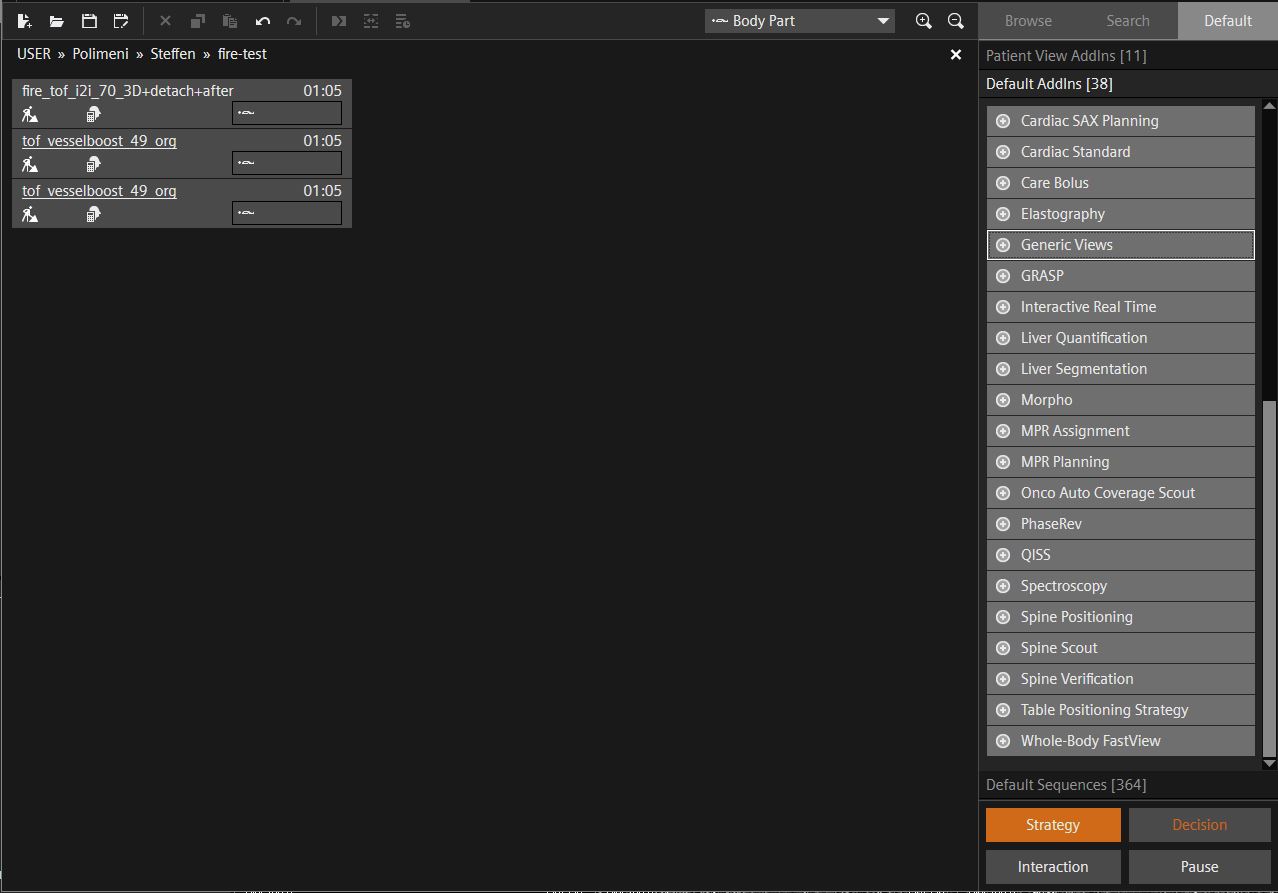
In the protocol editor, find Generic Views under Default AddIns and add it to the protocol you want to use with FIRE.
-
Check that Generic Views appears on the protocol entry.

-
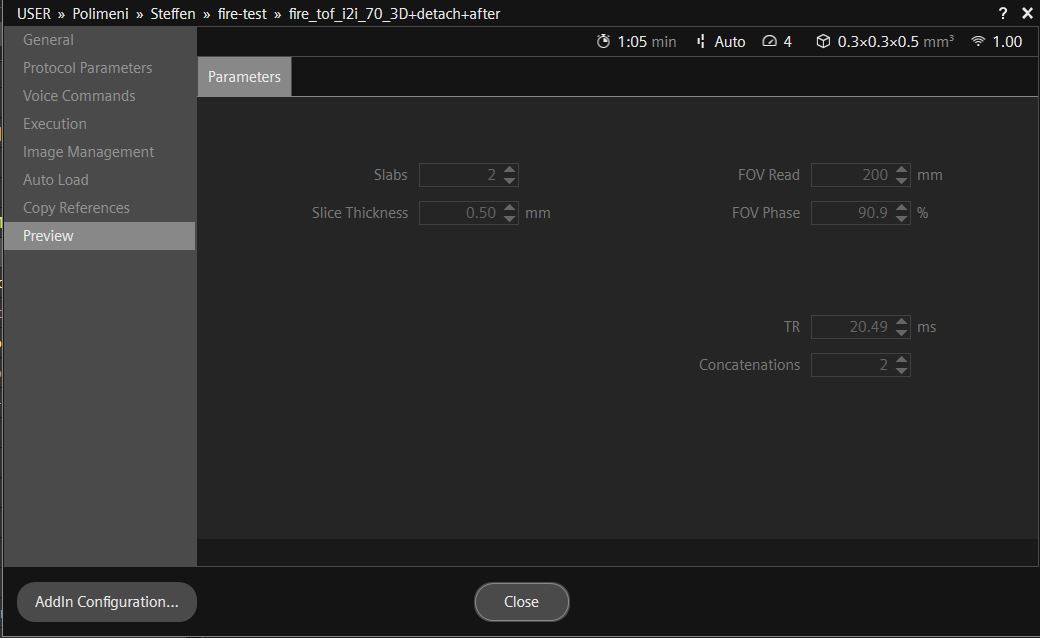
Open the protocol’s properties, select Preview, then click AddIn Configuration….
-
In the myExam Add-In Configurator, select Queue. Under ICE, select Use Customer Path. In the example, this points to
C:\ProgramData\Siemens\Numaris\MriCustomer\Ice. -
Set ICE program name to the program supplied by your installed FIRE package. The screenshot shows an
openreconi2iexampleprogram with a name beginningwip_070_fire_IceFireImageAddin_. Choose the entry for your own package.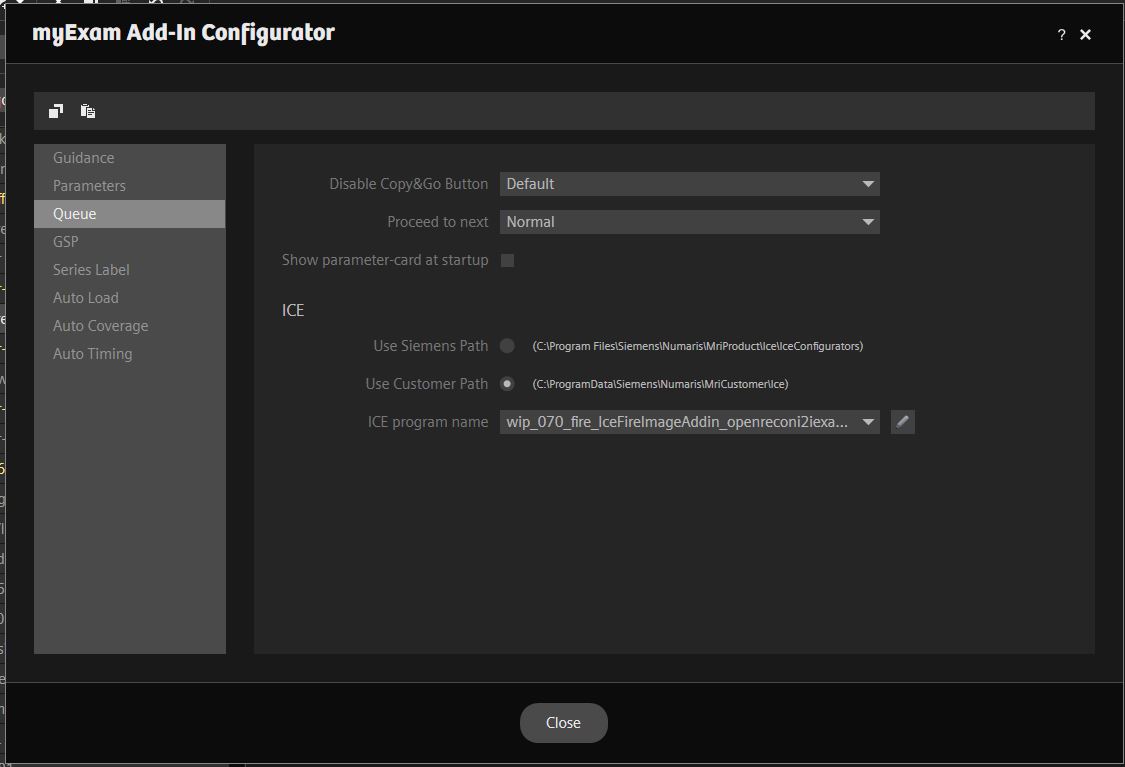
-
Close the configurator and protocol properties, then save the protocol. Test it with the installed FIRE package and check that it returns the expected image series.
9. Build and publish through GitHub Actions
Section titled “9. Build and publish through GitHub Actions”Commit and open the Neurocontainers pull request
Section titled “Commit and open the Neurocontainers pull request”From your Neurocontainers branch, review what will be published, then commit and push it to your fork:
cd /PATH/TO/neurocontainersgit status --shortgit diff --checkgit add recipes/myrecongit commit -m "Add myrecon OpenRecon recipe"git push -u origin add-MYPROJECT-openreconOpen a pull request from your fork to neurodesk/neurocontainers:main. Include:
- what the application does and which image/acquisition type it expects;
- the local build and MRD test commands you ran;
- the source and permission status of any public test data;
- expected returned series and important parameter combinations; and
- limitations that a scanner tester must know.
The current PR container candidate workflow accepts fork pull requests. It validates the changed recipe and OpenRecon metadata, builds every declared architecture/variant, creates Docker and SIF candidates, runs the deploy and fulltest.yaml checks and uploads an immutable candidate artifact.
What happens after merge
Section titled “What happens after merge”The current release sequence is:
- Neurocontainers promotes the exact tested candidate rather than rebuilding it.
- The image and release metadata are published.
- For a default x86_64 recipe containing
OpenReconLabel.json,sync_openrecon.pycreates or updates an OpenRecon metadata pull request. If the metadata is unchanged, it can dispatch a rebuild instead. - After the OpenRecon pull request is reviewed and merged, its
auto-buildworkflow runs the reusablebuild-appsworkflow. - That workflow builds both OpenRecon and FIRE artifacts, uploads both zips, and opens an issue containing download and installation instructions.
You therefore normally submit only the Neurocontainers pull request. Do not open a hand-written OpenRecon packaging pull request unless a maintainer asks for a packaging-only change or the automatic synchronization fails.
Fork OpenRecon for packaging changes
Section titled “Fork OpenRecon for packaging changes”If you need to submit changes directly to OpenRecon, first fork neurodesk/openrecon into your GitHub account. Forking Neurocontainers does not create an OpenRecon fork. Replace YOUR_GITHUB_USERNAME below with your GitHub username.
For a new checkout, clone your fork from the directory containing your Neurocontainers checkout:
git clone https://github.com/YOUR_GITHUB_USERNAME/openrecon.gitcd openrecongit remote add upstream https://github.com/neurodesk/openrecon.gitgit switch -c myrecon-packagingIf you already cloned neurodesk/openrecon, keep your existing checkout and branch. After creating your fork on GitHub, run these commands inside that checkout:
git remote set-url origin https://github.com/YOUR_GITHUB_USERNAME/openrecon.gitgit remote -vThe origin fetch and push URLs must point to your fork. Changing the remote preserves your local files and commits.
Review and commit the intended source changes, then push your current branch and configure tracking:
git push --set-upstream origin HEADOpen a pull request from that branch in your fork to neurodesk/openrecon:main. Keep generated packages and private test data out of the commit.
10. Troubleshooting and scanner notes
Section titled “10. Troubleshooting and scanner notes”Git push fails in the OpenRecon checkout
Section titled “Git push fails in the OpenRecon checkout”The current branch ... has no upstream branch means Git has no tracking branch configured. git push --set-upstream origin HEAD configures tracking when the push succeeds.
If the push instead reports Permission to neurodesk/openrecon.git denied with HTTP 403, origin points to the Neurodesk repository and your account lacks write access. Follow Fork OpenRecon for packaging changes to create a fork and update the existing checkout’s remote, then retry the push. Setting a tracking branch does not grant repository access.
For a normal recipe contribution, return to your Neurocontainers checkout and follow section 9. OpenRecon package builds alone do not require a push.
Package behaviour and metadata
Section titled “Package behaviour and metadata”Available colour maps for LUT settings
Section titled “Available colour maps for LUT settings”The colour maps available for LUT settings are stored on the scanner host in:
C:\Program Files\Siemens\Numaris\MriProduct\config\mri\ColorLUTMost systems include these palette files:
AAAsmo.palAwave.pal
Sent image values must fit within a 4096-value range
Section titled “Sent image values must fit within a 4096-value range”OpenRecon can send a maximum integer range of 4096 values back to the scanner.
If the returned images exceed that range, the values can wrap around instead of clipping. The symptom is that the sent images show repeating integer wraps and can look a bit like phase images.
Scale or clamp derived image data into the scanner-safe range before sending it from the MRD server.
Choice parameters need a non-empty default
Section titled “Choice parameters need a non-empty default”Current Neurocontainers and OpenRecon packaging validators reject a choice parameter whose default is empty or does not match one of its value IDs. Older packages created without this check could install successfully but remain unselectable in the sequence tab.
For example, this can fail because "default": "" does not match any entry in values:
{ "id": "metricsregion", "label": { "en": "Metrics Region" }, "type": "choice", "values": [ { "id": "wholebody", "name": { "en": "wholebody" } }, { "id": "abdomen", "name": { "en": "abdomen" } }, { "id": "pelvis", "name": { "en": "pelvis" } }, { "id": "thigh", "name": { "en": "thigh" } }, { "id": "leg", "name": { "en": "leg" } } ], "default": "", "information": { "en": "Region passed to MuscleMap metrics" }}Set the default to one of the available values IDs instead:
{ "id": "metricsregion", "label": { "en": "Metrics Region" }, "type": "choice", "values": [ { "id": "wholebody", "name": { "en": "wholebody" } }, { "id": "abdomen", "name": { "en": "abdomen" } }, { "id": "pelvis", "name": { "en": "pelvis" } }, { "id": "thigh", "name": { "en": "thigh" } }, { "id": "leg", "name": { "en": "leg" } } ], "default": "wholebody", "information": { "en": "Region passed to MuscleMap metrics" }}Scanner runtime
Section titled “Scanner runtime”Do not use Prio Recon with OpenRecon
Section titled “Do not use Prio Recon with OpenRecon”This option has to be disabled in an OpenRecon sequence:
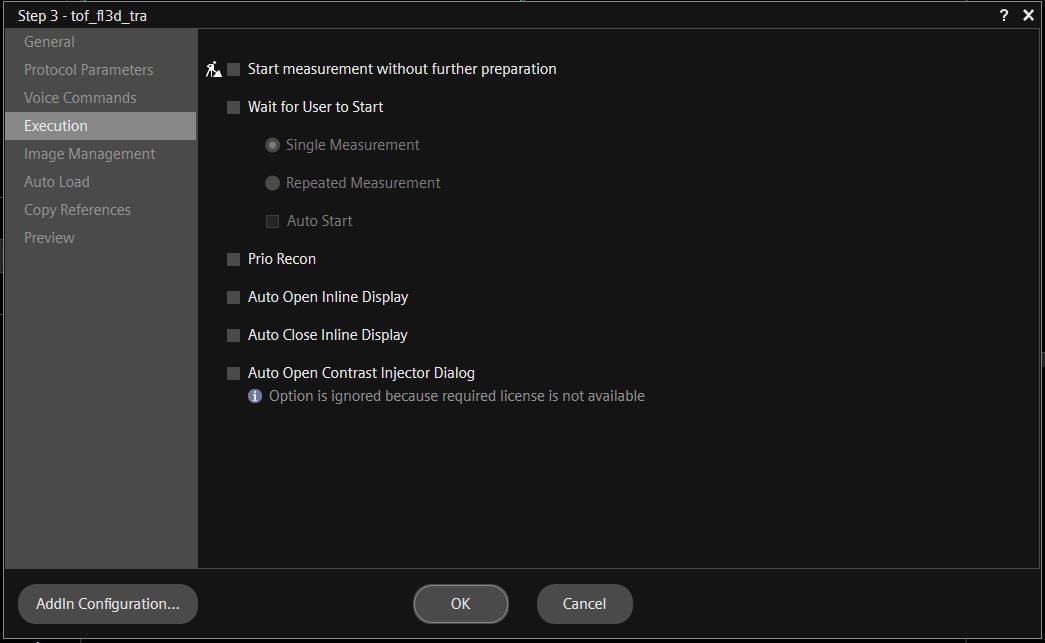
Right-click Sequence in the Scan Queue, then select Edit Properties (Alt+Enter) and Execution.
CUDA version
Section titled “CUDA version”Make sure that you install the correct CUDA version in the container and that it does not get overwritten by a pip install. The current OpenRecon package build rejects a CUDA toolkit or PyTorch CUDA version newer than 11.8.
Always double-check in the container with:
# Check that the PyTorch CUDA version is no newer than 11.8.python -c "import torch; print(torch.version.cuda)"High-performance computing licence side effects
Section titled “High-performance computing licence side effects”For OpenRecon to work, the N_High_End_Computing licence must be active on the scanner.
Activating this licence takes memory away from the main ICE recon system, so normal recons might run out of memory sooner. If you need this memory back, you can temporarily disable this licence and OpenRecon.
Turn the licence off by commenting it out. Add # in front of the relevant lines in C:\Program Files\Siemens\Numaris\bin\Common\Licensing\license.dat.
Restart the whole system. Restarting the workspace is not enough.
Versioning and maintenance
Section titled “Versioning and maintenance”Versioning of containers
Section titled “Versioning of containers”OpenRecon requires container versions. For example, on the scanner, version 1.2.3 only shows the major version in the selection box, but hovering over the name shows the full version:
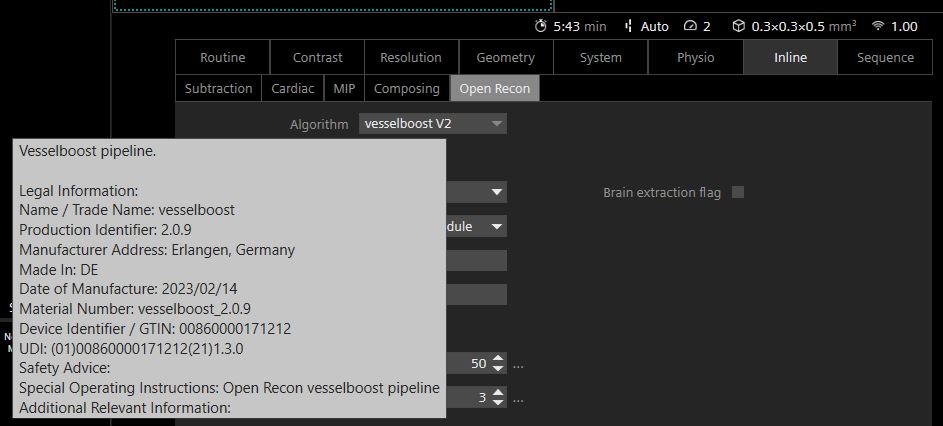
OpenRecon will not install an update to a container with the same version.
Cleaning up packages on the scanner (on XA60/61)
Section titled “Cleaning up packages on the scanner (on XA60/61)”After installing and testing different OpenRecon containers, old containers remain in the host registry and consume space on the host C: drive.
Download wip_OpenRecon_PackageRemover_Tool.exe from the Siemens MAGNETOM forum and follow the installation instructions.
At the end of a testing session, purge the old packages by running this in the powershell:
wip_OpenRecon_PackageRemover_Tool.exe --purgeAnswer y for each package you want to purge.
Then run garbage collection to clean up the storage:
wip_OpenRecon_PackageRemover_Tool.exe --gcThis tool often breaks the OpenRecon watcher process, so installing new packages after cleanup may fail until the host is restarted. Reboot the host after cleanup before installing more OpenRecon packages.
For the deletion to work, and for the tool to see your OpenRecon package, the package needs to be labelled as Research. It will not touch OpenRecon tools labelled as Product.
Check that your OpenReconLabel.json file contains:
"content_qualification_type": "RESEARCH"