Visual Studio Code
The following guide is for connecting to Neurodesktop using a VS Code installation running on your host machine.
Please see additional instructions below if Neurodesktop is running remotely (i.e. Cloud, HPC, VM)
Pre-requisites
Visual Studio Code (https://code.visualstudio.com) installed on your host. Standalone version should work fine Install the following VS Code extension:
- Dev Containers ms-vscode-remote.remote-containers from Microsoft
Connecting to Neurodesktop
Start Neurodesk through the Neurodeskapp or through a docker command. Open VS Code and open the Remote Explorer. Then Attach to the running Neurodesktop container.
This may take about a minute if it is the first time you are connecting, as VS code has to install the VS Code server onto the container. Repeat connections should be faster.
First time connection
The first time connection will default to using neurodesktop root user. We want the default connection to be as the normal user to avoid permission issues. To check which user is being used, open the terminal in the neurodesktop VS Code instance and check if the user is
userorroot
You can change to the correct user by running su jovyan.
Useful Additions
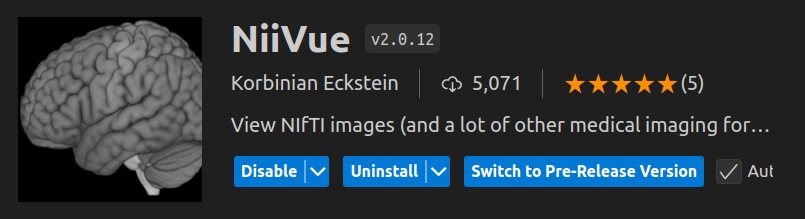
Plugins to view neuroimaging data inside VScode: