Neurocommand requires a Linux host machine, virtual machine or WSL for Windows.
This is the multi-page printable view of this section. Click here to print.
Neurocommand
For more advanced users who prefer a command-line interface
1 - Linux and HPC
Install neurocommand on Linux, HPC
Ways of using Neurocommand in Linux and HPC:
- You can use the module files for Neurocontainers directly via CVMFS: https://neurodesk.org/docs/getting-started/neurocontainers/cvmfs/
- or you can install Neurocommand as described here:
Requirements:
- python 3.6+ https://www.anaconda.com/docs/getting-started/miniconda/install#linux-terminal-installer
- singularity https://docs.sylabs.io/guides/3.5/user-guide/quick_start.html
- git
- lmod https://lmod.readthedocs.io/en/latest/
On HPC, you will likely have lmod and Singularity already installed - check with your sysadmin
Setup Instructions:
Install command line (e.g. running on Linux or HPC)
- Load singularity For optimal performance, ensure you are using Singularity version 3.x:
module load singularity/3.5.0
#or
module load singularity
#or
module load apptainer
If this doens’t work it might already be loaded. Just run singularity and check.
- Load aria2 (Optional) To speed up container downloads, you can optionally install or load aria2c:
module load aria2c- Clone and Set Up the Repository Clone the repository into a directory with enough storage and ensure you are not using a symbolic link (to be sure run cd `pwd -P`). It’s recommended to perform this setup within a Python virtual environment (venv) or a Conda environment:
git clone https://github.com/neurodesk/neurocommand.git
cd neurocommand
pip3 install -r neurodesk/requirements.txt --user
bash build.sh --cli
bash containers.sh
export SINGULARITY_BINDPATH=`pwd -P`
# OR, depending on your installation:
export APPTAINER_BINDPATH=`pwd -P`
Install Containers
- If these steps are successful, the help will be displayed
- Install all or only specific containers by following the instructions, e.g.:
- Search and Install Specific Containers To search for containers that have “itksnap” in the name:
bash containers.sh itksnap- Install a Specific Version To install a specific version, (e.g., itksnap version 4.0.2 from 20240117):
./local/fetch_containers.sh itksnap 4.0.2 20240117To install all containers with that name:
bash containers.sh --itksnapTo download all containers (be careful - there are a lot of containers!):
bash containers.sh --allAdd your containers to lmod
- To add each container to the module search path, run the following:
module use $PWD/local/containers/modules/- It may be a good idea to add this to your .bashrc if it works. When adding to your .bashrc you will need to replace $PWD to point to the correct path, i.e. the output of this
echo "module use $PWD/local/containers/modules/"- It is very important to also set the SINGULARITY_BINDPATH or the APPTAINER_BINDPATH variable in your .bashrc. This variable must contain a comma-separated list of directories you want to access with the Neurodesk tools.
e.g.:
export SINGULARITY_BINDPATH=/scratch/,/data/
# OR, depending on your installation:
export APPTAINER_BINDPATH=/scratch/,/data/
#Note: User the correct line depending on your installation. Do not add a directory that does not exist, otherwise the containers will not start!- Run
ml availto see the installed containers at the top of the list (neurodesk containers will take preference over system modules with the same name), run:
module --ignore_cache avail- Every time you start a new shell you need to run
module use PathToYourContainersor add this command to you .bashrc file.
GPU support
Some of our containers contain GPU-accelerated applications. Here is an example that runs the GPU accelerated program eddy in FSL:
module load fsl/6.0.5.1
export neurodesk_singularity_opts='--nv'
eddy_cuda9.1
For Lxde desktops
bash build.sh --lxde --edit
For Mate desktops
Run bash build.sh --init (or bash build.sh --lxde --edit)
lxde/mate: Mate
installdir: Where all the neurocommand files will be stored (Default: ./local)
appmenu: The linux menu xml file. (Usually /etc/xdg/menus/****-applications.menu)
appdir: Location for the .desktop files for this linux desktop (Usually /usr/share/applications)
deskdir: Location for the .directory files for this linux desktop (Typically /usr/share/desktop-directories)
For desktop menus
sudo bash install.sh to install
Creates symlinks to menu files in installation dir
sudo bash uninstall.sh to uninstall
Removes symlinks
For user-specific desktop menus in a shared Linux environment
mkdir -p $HOME/.config/menus
mkdir -p $HOME/.local/share/applications
mkdir -p $HOME/.local/share/desktop-directories
ln -sfn /PATH_TO_YOUR_INSTALLATION/neurocommand/local/xfce-applications.menu $HOME/.config/menus
ln -sfn /PATH_TO_YOUR_INSTALLATION/neurocommand/local/neurodesk-applications.menu $HOME/.config/menus
ln -sfn /PATH_TO_YOUR_INSTALLATION/neurocommand/local/applications $HOME/.local/share/applications/neurodesk
ln -sfn /PATH_TO_YOUR_INSTALLATION/neurocommand/local/desktop-directories $HOME/.local/share/desktop-directories/neurodesk
To update
1. Update the Neurocommand Repository
First, ensure your local repository is up to date by pulling the latest changes:
git pullNext, rebuild Neurocommand by running:
bash build.sh2. Update Containers
To update the containers, navigate to the neurodesktop directory and run:
bash containers.sh3. Update Specific Modules
Choose the module you want to update for example you want to update mrtrix3/3.0.2 module with the eddy_cuda fix:
~/neurocommand/local/fetch_containers.sh mrtrix3 3.0.2 20221108 mrview $@Installation Examples
We show a couple of specific examples on how Neurodesk can be installed on various HPC systems here.
2 - Windows
Install neurocommand on Windows
WSL (w/ Ubuntu + LXDE)
For more information on WSL: https://docs.microsoft.com/en-us/windows/wsl
Setting up
- Setup WSL2 using the following instructions (Ubuntu 18.04 recommended)
https://docs.microsoft.com/en-us/windows/wsl/install-win10 Proceed until a Ubuntu bash shell is available from the Windows Host
Run the remaining commands in the Bash shell sudo apt-get install lxdeto install LXDE desktop in WSL- Reboot
sudo apt-get install xrdpto install XRDP in WSL- Open
/etc/xrdp/xrdp.iniChangeport=3389toport=3390and save - Run
echo startlxde > ~/.xsession
Running
sudo service xrdp startto start xrdp server- Open Microsoft Remote Desktop Connection in Windows host
- Connect to
localhost:3390 - In the next login page, leave Session as
Xorg. Enter your WSL username and password and clickOK - This should open an LXDE Linux Desktop environment. Follow Linux guide from here on
3 - PyNeurodesk
Use Neurodesk containers from Python, notebooks, and shell scripts
PyNeurodesk is the Python interface to Neurodesk containers. It lets you search for containers, start a local container runtime, run commands from Python, and load Neurodesk tools into an interactive shell.
Use PyNeurodesk when you want to:
- call Neurodesk tools from a Python script or notebook
- avoid managing container paths by hand
- load tools such as
niimathinto your terminal withnd load - connect to an existing Neurodesk container daemon
PyNeurodesk is installed from the Python package named
neurodesk. After installation, both import neurodesk and import pyneurodesk work.Requirements
- Python 3.9 or newer
- a machine that can run the Neurodesk container daemon
- internet access for the first download of a container, Linux kernel, and emulator files
Live container execution depends on host virtualization support. On Linux systems this usually means KVM needs to be available. If you are on an HPC system, check with your system administrator before using PyNeurodesk on compute nodes.
Install PyNeurodesk
Create and activate a Python environment first if you do not want to install into your main Python environment.
python3 -m venv neurodesk-python
source neurodesk-python/bin/activate
python -m pip install --upgrade pip
python -m pip install neurodesk
Check that the command line tools are available:
neurodesk --help
nd --help
Run a container from Python
Import Neurodesk, prepare a container, then run a command inside it.
import neurodesk as nd

niimath = nd.container("niimath")
print(niimath.run("niimath", "-help"))
The first run may take a little longer because PyNeurodesk needs to download and prepare the required files. Later runs reuse the local cache.
Many containers expose command wrappers. After the container is ready, you can call a wrapper as a Python method:
import neurodesk as nd

niimath = nd.container("niimath")
print(niimath.niimath("-help"))
Find available container versions
Use search() to see matching Neurodesk container versions:
import neurodesk as nd

print(nd.search("niimath"))
When you call nd.container("niimath"), PyNeurodesk resolves the container from Neurodesk release metadata or CVMFS and prepares the preferred version automatically.
Share a working directory
Use share_dir() when a container needs to read or write files from your host machine.
from pathlib import Path
import neurodesk as nd

work = nd.share_dir(Path.cwd(), writable=True)
niimath = nd.container("niimath")

print(niimath.run("sh", "-lc", f"ls {work.guest_path}"))
The shared folder is mounted inside the container under a path like /.share/<session-id>. Use writable=True when the tool needs to create or modify files.
Use PyNeurodesk from a shell
PyNeurodesk can add Neurodesk command wrappers to your current shell session.
For Bash:
source <(neurodesk activate --shell bash)
nd load niimath
niimath -help
For Zsh:
source <(neurodesk activate --shell zsh)
nd load niimath
niimath -help
For PowerShell:
nd activate | iex
nd load niimath
niimath -help
The nd load command prepares the container and creates command wrappers for tools listed by the container metadata. These wrappers are stored in a temporary session directory and added to your PATH.
Run a one-off shell command
After activating your shell, you can run a command without adding wrappers permanently to the session:
nd exec niimath -- niimath -helpConnect to an existing daemon
If you already have a Neurodesk container daemon running, connect to it with a URL:
import neurodesk as nd

client = nd.connect(base_url="http://127.0.0.1:3456")
print(client.instance_status())
You can also set the daemon URL with an environment variable:
export PYNEURODESK_BASE_URL=http://127.0.0.1:3456Useful environment variables
PYNEURODESK_BASE_URL: connect to an existing daemonPYNEURODESK_CACHE_DIR: choose where PyNeurodesk stores daemon state and shell sessionsPYNEURODESK_CCVM: use a specificccvmdaemon binaryPYNEURODESK_HTTP_TIMEOUT: set the HTTP timeout in secondsPYNEURODESK_BOOT_TIMEOUT: set the VM boot timeout in secondsPYNEURODESK_RELEASES_DIR: use local Neurodesk release metadataPYNEURODESK_RELEASES_API: use a custom release metadata API endpoint
Troubleshooting
The first run is slow
This is expected. PyNeurodesk may need to download the container, Linux kernel, emulator, and image metadata. Try the same command again after the first run completes.
The container daemon cannot start
Check that virtualization is available on your machine. On Linux, confirm that KVM is available and that your user has permission to use it.
A command cannot see my data
Share the directory with nd.share_dir() in Python, or run the command from a directory that the active shell session can mount. If the tool needs to write outputs, make the share writable.
I want to run fulltest recipes
Install the optional fulltest dependencies:
python -m pip install "neurodesk[fulltest]"Then use the pyneurodesk-fulltest command.
4 - Visual Studio Code
Guide connecting your VS Code environment to Neurodesktop
The following guide is for connecting to Neurodesktop using a VS Code installation running on your host machine.
Please see additional instructions below if Neurodesktop is running remotely (i.e. Cloud, HPC, VM)
Pre-requisites
Visual Studio Code (https://code.visualstudio.com) installed on your host. Standalone version should work fine Install the following VS Code extension:
- Dev Containers ms-vscode-remote.remote-containers from Microsoft
Connecting to Neurodesktop
Start Neurodesk through the Neurodeskapp or through a docker command. Open VS Code and open the Remote Explorer. Then Attach to the running Neurodesktop container.
This may take about a minute if it is the first time you are connecting, as VS code has to install the VS Code server onto the container. Repeat connections should be faster.
First time connection
The first time connection will default to using neurodesktop root user. We want the default connection to be as the normal user to avoid permission issues. To check which user is being used, open the terminal in the neurodesktop VS Code instance and check if the user is
userorroot
You can change to the correct user by running su jovyan.
Useful Additions
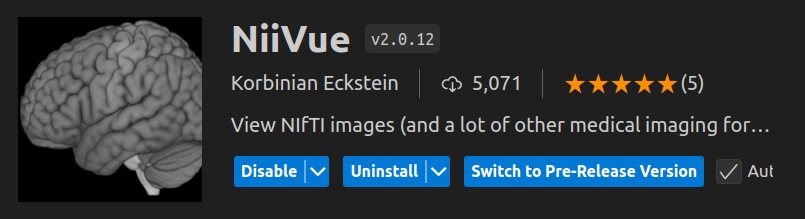
Plugins to view neuroimaging data inside VScode: