Sherlock
Neurodesk runs on Stanfords supercomputer “Sherlock” and below are different ways of accessing it.
Using Neurodesk on Sherlock via ssh
Using Neurodesk containers
Setup your ~/.ssh/config
Host sherlock
    ControlMaster auto
    ForwardX11 yes
    ControlPath ~/.ssh/%l%r@%h:%p
    HostName login.sherlock.stanford.edu
    User <sunetid>
    ControlPersist yes
and then connect to sherlock
ssh sherlockYou can module use the neurodesk modules (if they have been installed before - see instructions for installing and updating at the end of this page below):
module use $GROUP_HOME/modules
export APPTAINER_BINDPATH=/scratch,/tmp
You can also add these to your ~/.bash_profile:
echo "module use $GROUP_HOME/modules/" >> ~/.bash_profile
echo "export APPTAINER_BINDPATH=/scratch,/tmp,/oak" >> ~/.bash_profile
source ~/.bash_profile
Now you can list all modules (Neurodesk modules are the first ones in the list):
ml avOr you can module load any tool you need:
ml fsl/6.0.7.18Submitting a job
put this in a file, e.g. submit.sbatch:
#!/bin/bash
#
#SBATCH --job-name=test
#SBATCH --time=01:00:00
#SBATCH --ntasks=1
#SBATCH --cpus-per-task=1
#SBATCH --mem-per-cpu=2G
#SBATCH --output=logs/%x_%j.out
#SBATCH --error=logs/%x_%j.err
#SBATCH -p normal

module purge
module use $GROUP_HOME/modules/
module load ants/2.6.0
ants.... $1
use sh_part to see which partitions and limits are available:
sh_partthen submit:
sbatch submit.sbatchor parallize across subjects:
for file in `ls sub*.nii`;
    do echo "submitting job for $file";
    sbatch submit.sbatch $file;
done
if you need lots of jobs, consider using array jobs: https://www.sherlock.stanford.edu/docs/advanced-topics/job-management/?h=array+jobs
e.g.:
#!/bin/bash
#SBATCH --job-name=test
#SBATCH --time=01:00:00
#SBATCH --ntasks=1
#SBATCH --cpus-per-task=1
#SBATCH --mem-per-cpu=2G
#SBATCH --output=logs/%x_%j.out
#SBATCH --error=logs/%x_%j.err
#SBATCH -p normal
#SBATCH --array=1-10

touch test_${SLURM_ARRAY_TASK_ID}
starting a matlab job:
#!/bin/bash
#SBATCH --job-name=invert
#SBATCH --time=00:03:00
#SBATCH --ntasks=1
#SBATCH --cpus-per-task=3
#SBATCH --mem-per-cpu=4G
#SBATCH --output=logs/%x_%j.out
#SBATCH --error=logs/%x_%j.err
#SBATCH --partition=normal
#SBATCH --mail-type=ALL

module purge
module load matlab
matlab -batch matlab_file_without_the_dot_m_ending
check:
squeue -u $USER
# or
squeue --me
# or to watch it continuesly:
watch -n 5 "squeue -u $USER"
# or get more details:
squeue --me -o "%.18i %.9P %.30j %.8u %.8T %.10M %.9l %.6D %.4C %.10m"
# or create an alias:
echo 'alias sq="squeue --me -o \"%.18i %.9P %.30j %.8u %.8T %.10M %.9l %.6D %.4C %.10m\""' >> ~/.bashrc
cancel jobs:
scancel <jobid>
scancel --name=my_job_name
more details https://www.sherlock.stanford.edu/docs/user-guide/running-jobs/#example-sbatch-script
to find out how much resources you need to request for jobs you can use the tool ruse https://www.sherlock.stanford.edu/docs/user-guide/running-jobs/#sizing-a-job
module load system ruse
ruse ./myapp
Using GUI applications
First you need to connect to Sherlock with SSH forwarding (e.g. from a Linux machine or from your local neurodesk or from a mac with https://www.xquartz.org/ installed, or from windows using Mobaxterm)
and then request an interactive job and start the software:
sh_dev
ml mrtrix3
mrview
This runs via x-forwarding and doesn’t work well, for a better experience see below how to start a full neurodesktop on Sherlock.
GPU support
request a GPU and then add –nv option:
sh_dev -g 1
module load fsl
export neurodesk_singularity_opts='--nv'
git clone https://github.com/neurolabusc/gpu_test.git
cd gpu_test/etest/
bash runme_gpu.sh
Storage on Sherlock
here is a great overview of where to store files on Sherlock: https://www.sherlock.stanford.edu/docs/storage/
TLDR:
- important scripts in $HOME (15GB)
- important scripts and software you want to share with your group in $GROUP_HOME (1TB)
- temporary data (deleted after 90days) goes in $SCRATCH (100TB)
- temporary data (deleted after 90days) to share with your group in $GROUP_SCRATCH (100TB)
- temporary job data (deleted after job ends) in $L_SCRATCH (a few TB)
- data to keep for a few years in $OAK (what you pay for, e.g. 20TB)
- data to archive in ELM (you pay what you store there)
use sh_quota to check how much is available:
sh_quotaUsing Neurodesk on Sherlock via Ondemand
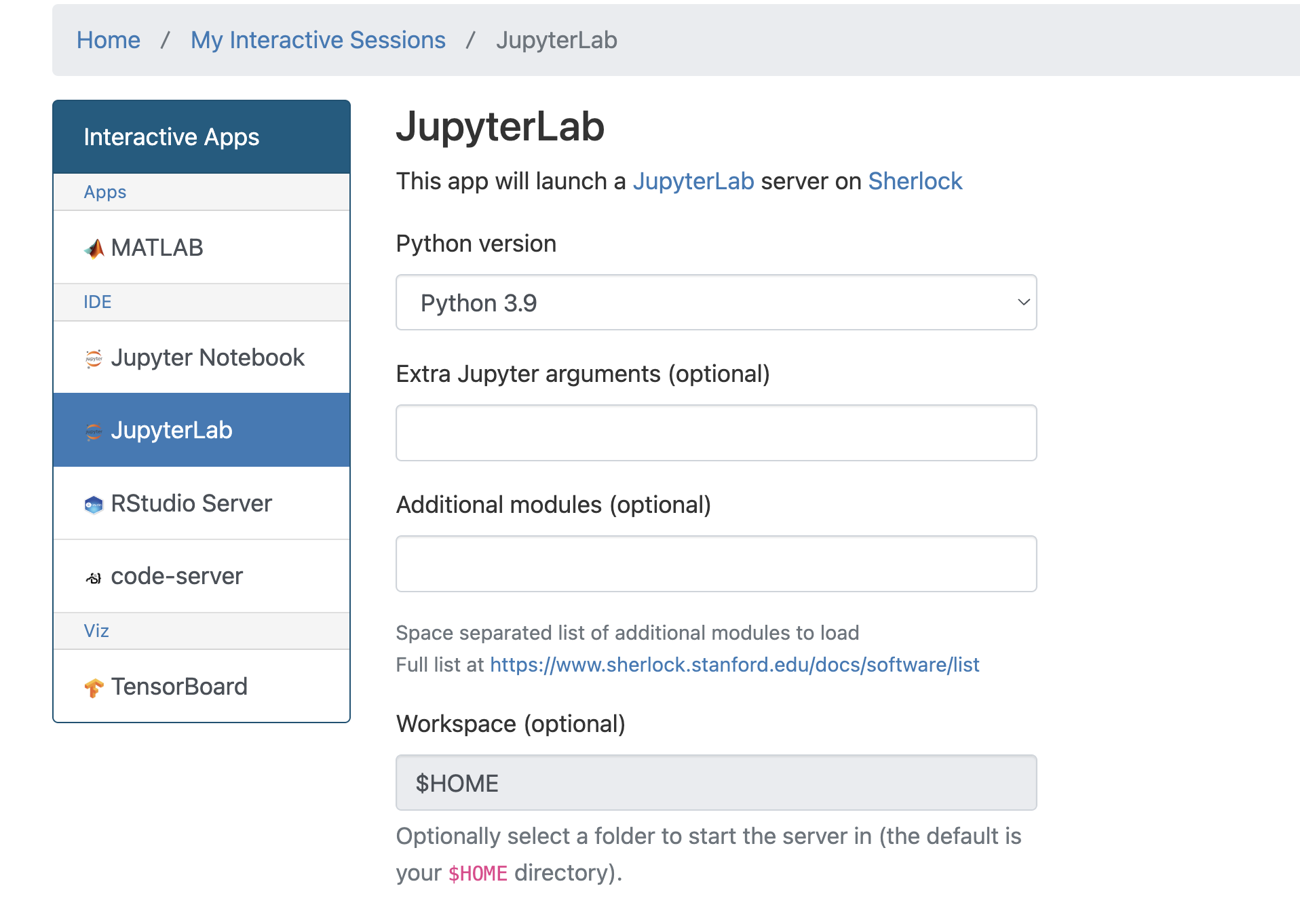
Open a jupyterlab session via Open On-Demand: https://ondemand.sherlock.stanford.edu/
Make sure to select python 3.9 - otherwise the HPC slurm plugin for jupyterlab will not work
Installing jupyterlab plugins
open a terminal in jupyterlab and install:
pip install jupyterlab_niivue ipyniivue jupyterlmod jupyterlab_slurmAfter the installation finished restart the jupyterlab session in Ondemand.
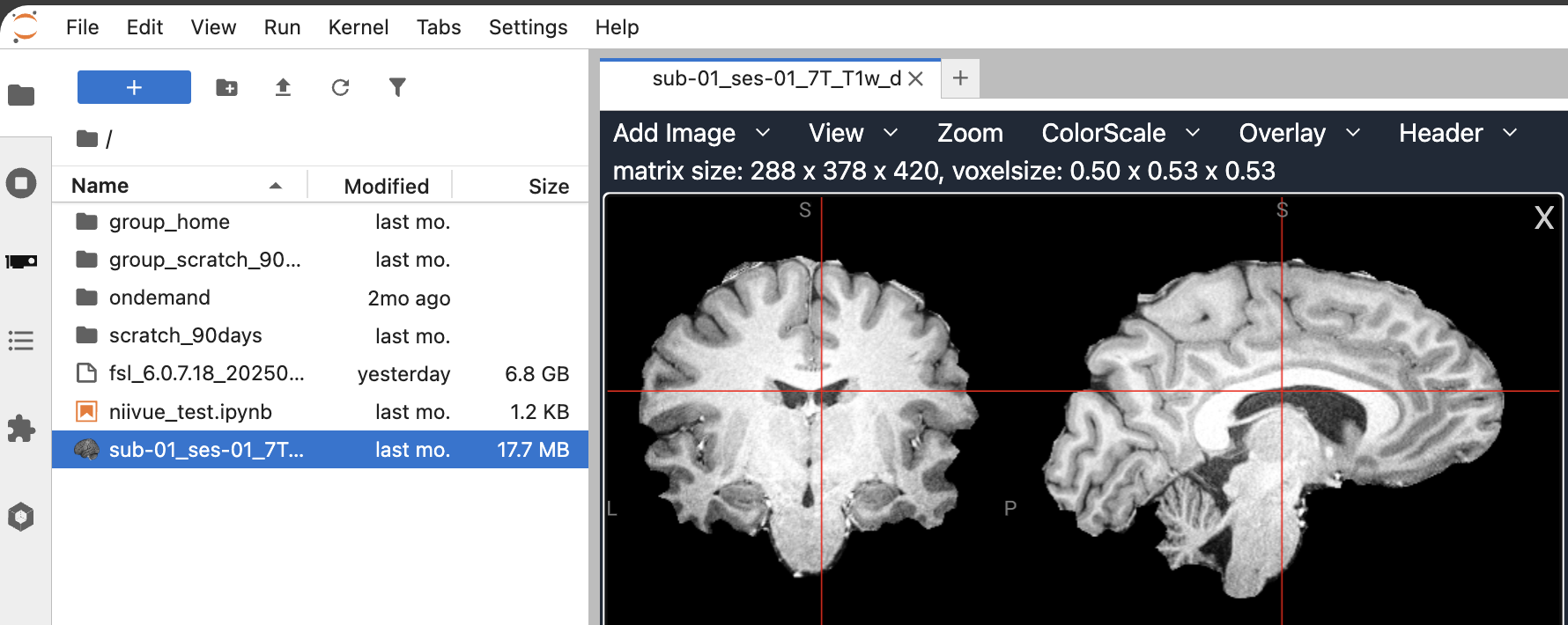
Neuroimaging Visualization in the File Browser and notebooks of Jupyter Lab
The pip install jupyterlab_niivue added an extension to jupyterlab that visualizes neuroimaging data directly via a double-click in the filebrowser in jupyterlab:
Using containers inside a jupyter notebook
The install of pip install jupyterlmod made the following possible inside a jupyter notebook:
import os
import lmod
group_home = os.environ.get("GROUP_HOME", "")
os.environ["MODULEPATH"] = os.path.abspath(f"{group_home}/neurodesk/local/containers/modules/")
await lmod.load('fsl')
now you can run command line tools in a notebook
!betUsing niivue inside a jupyter notebook
The install of pip install ipyniivue allows interactive visualizations inside jupyter notebooks: See examples here https://niivue.github.io/ipyniivue/gallery/index.html
e.g.:
from ipyniivue import NiiVue

nv = NiiVue()
nv.load_volumes([{'path': 'sub-01_ses-01_7T_T1w_defaced_brain.nii.gz'}])
nv
Checking on SLURM inside jupyter lab
The install of pip install jupyterlab_slurm added a plugin that allows monitoring slurm jobs.
Using Neurodesk via a full neurodesktop session
This is an ideal setup for visualizing results on Sherlock and for running GUI applications. You need to run these commands on your computer (e.g. MacOS/Linux/Windows WSL2):
downloading startup script
curl -J -O https://raw.githubusercontent.com/neurodesk/neurodesk.github.io/refs/heads/main/content/en/Getting-Started/Installations/connectSherlock.shstarting session
bash connectSherlock.shAfter startup, open the printed URL http://127.0.0.1:<random_port>?token=<token> in your browser.
You can submit sbatch jobs from inside this full Neurodesktop session, but make sure that the sbatch job file is stored in a location that’s identical between Neurodesktop and the sherlock cluster, so for example /oak/… - important: Do not submit batch jobs from within the jovyan homedirectory /home/jovyan as this will not be accessible to slurm on the cluster under that path.
connecting with VScode
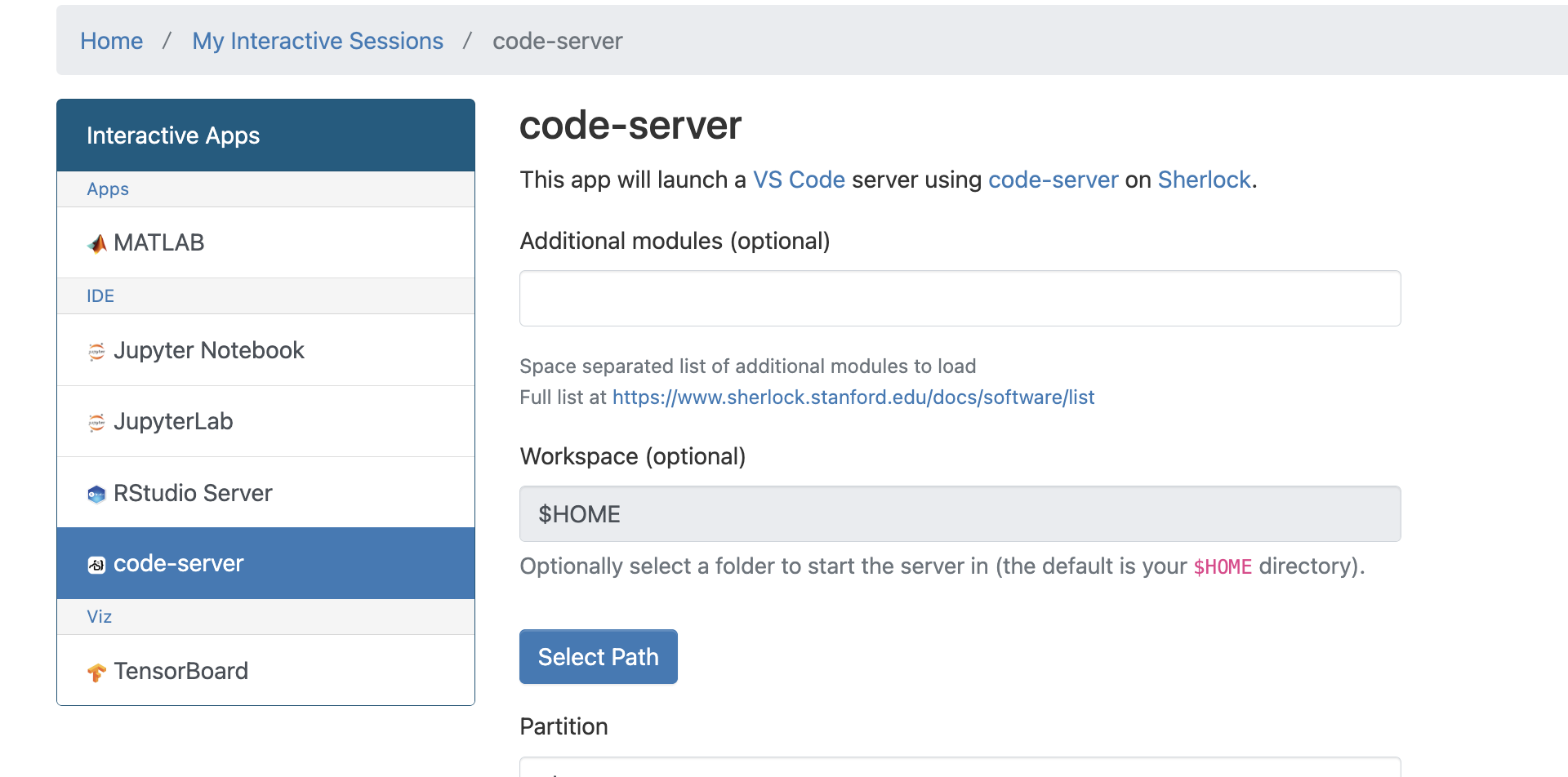
VScode server does not work on he login nodes due to resource restrictions. It might be possible to run it inside a compute job and inside a container. However, it is possible to run vscode server through ondemand:
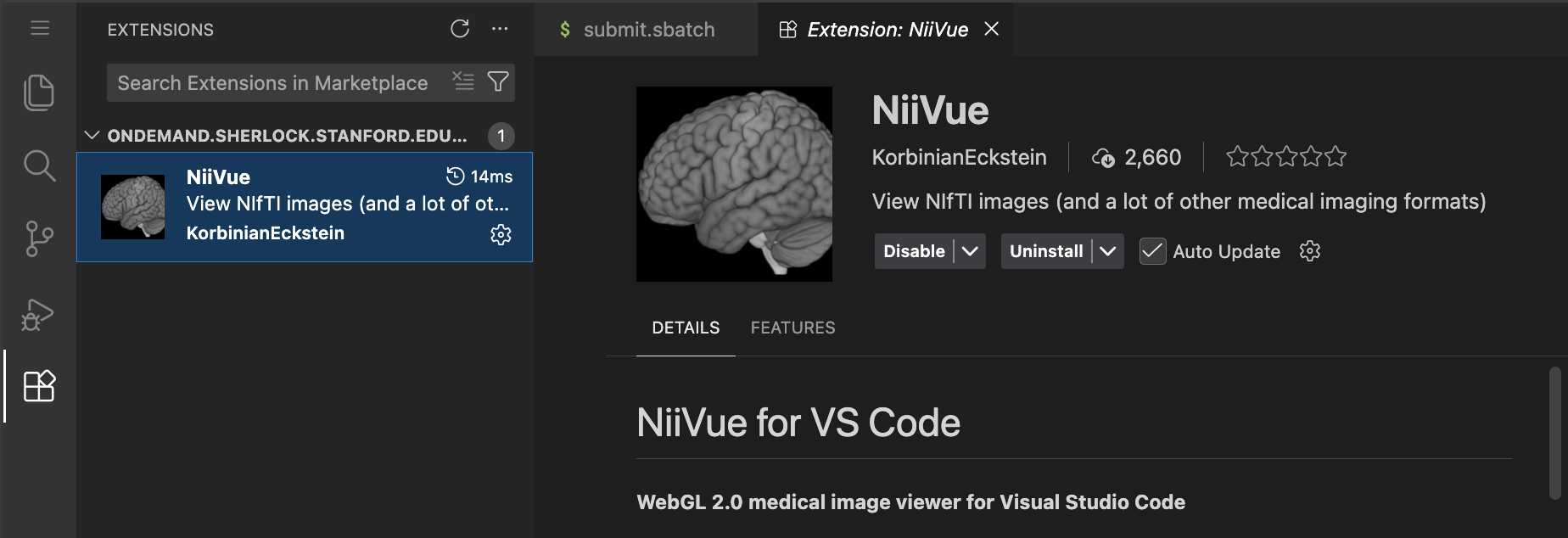
A great extension to install is niivue for vscode which allows visualizing neuroimaging data in vscode:
and for AI coding:
- claude code
- gemini CLI companion
- gemini code assist
and for checking on slurm jobs in vscode:
- slurm–
and for matlab scripts:
- MATLAB Extension: Download it in a terminal in vscode and then install it through the vscode extension manager:
wget https://github.com/mathworks/MATLAB-extension-for-vscode/releases/download/v1.3.8/language-matlab-1.3.8.vsix"useful shortcuts:
- you can execute a line from your scripts on the terminal via setting a keyboard shortcut to “Terminal: Run Selected Text in Active Terminal” - that makes testing scripts and debugging them quite quick
connecting with Cursor
Cursor does not work on the login nodes due to resource restrictions. It might be possible to run it inside a compute job and inside a container, but I didn’t get that to work yet.
using coding agents on sherlock
Copilot CLI — an extension of GitHub Copilot that answers natural-language prompts and generates shell commands and code snippets interactively in the CLI. Integrates with developer workflow and git metadata, good at scaffolding repo-level changes. Use this for drafting Slurm scripts, shell-based data-movement commands, Makefiles, container entrypoints, and succinct code edits from the terminal. Caution: always validate generated shell commands before running on Oak.
ml copilot-cli
copilot
Gemini CLI — a CLI assistant that can generate code from Google’s Gemini family of models (via Google Cloud/Vertex AI or client tooling). Provides strong multilingual reasoning and contextual code completion. Use this for translating research intent into cloud and hybrid workflows, generating code for TPU/GPU workloads, and producing infrastructure-as-code snippets that tie to GCP resources. Caution: always confirm data residency and compliance requirements for sensitive data.
ml gemini-cli
gemini
Claude Code (Claude family) — a coding-specialized variant in the Anthropic Claude model family aimed at code generation, refactoring, and reasoning tasks. Provides conversational reasoning about code, multi-step planning for algorithmic tasks, and safer-response tuning relative to generic models. Caution: check private endpoints/dedicated instances before sending sensitive datasets.
ml claude-code
claude
Codex — an OpenAI model family good at producing short code snippets, language translations, and API glue, historically the basis for many coding assistants. Use this for scaffold code, translating pseudocode to working scripts, and generating wrappers for system calls and schedulers. Caution: watch out for API hallucinations and insecure shell usage suggestions; verification in GPT-4 (which often supersedes Codex in capability and safety) advised.
ml codex
codex
Crush CLI — an all-around CLI assistant from the Charmbracelet Go-based “ecosystem” intended to improve interactive developer workflows and scripting. Use it for interactive shells or task runners, pipeline composition for local data preprocessing, productivity (nicer prompts, piping primitives, nicer output formatting), or small automation tasks such as repo tooling and glue scripts.
ml crush
crush
For best neurodesk integration make sure to download Neurodesk’s AGENT.md file and place it in working directory:
wget https://raw.githubusercontent.com/neurodesk/neurodesktop/refs/heads/main/config/agents/AGENTS.mdMisc
note on miniconda
we need an older version of Miniconda on Sherlock due to the outdated glibc:
wget https://repo.anaconda.com/miniconda/Miniconda3-py310_23.3.1-0-Linux-x86_64.sh
bash Miniconda3-py310_23.3.1-0-Linux-x86_64.sh
note on MRIQC
NOTE: MRIQC has its $HOME variable hardcoded to be /home/mriqc. This leads to problems. A workaround is to run this before mriqc:
export neurodesk_singularity_opts="--home $HOME:/home"note on AFNI
NOTE: If you are using AFNI then the default detach behavior will cause SIGBUS errors and a crash. To fix this run AFNI with:
afni -no_detachData transfer
Transfer files to and from Onedrive
First install rclone on your computer and set it up for onedrive. Then copy the config file ~/.config/rclone/rclone.conf to sherlock. Then run rclone on sherlock:
ml system
ml rclone
rclone ls
rclone copy
setting up rclone for onedrive (needs to be done on a computer with a browser, so not sherlock):
rclone config
# select n for new remote
# enter a name, e.g. onedrive
# select one drive from the list, depending on the rclone version this could be 38
# hit enter for default client_id
# hit enter for default client_secret
# select region 1 Microsoft Global
# hit enter for default tenant
# enter n to skip advanced config
# enter y to open a webbrowser and authenticate with onedrive
# enter 1 for config type OneDrive Personal or Business
# hit enter for default config_driveid
# enter y to accept
# enter y again to confirm
# then quit config q
# now test:
rclone ls onedrive:
# if it's not showing the files from your onedrive, change the config_driveid in ~/.config/rclone/rclone.conf
vi ~/.config/rclone/rclone.conf
mounting sherlock files on your computer through sshfs
install sshfs for your operating system, e.g. on MacOS:
brew tap macos-fuse-t/homebrew-cask
brew install fuse-t-sshfs
then mount for macos:
mkdir ~/sherlock_scratch
sshfs <sunetid>@dtn.sherlock.stanford.edu:./ ~/sherlock_scratch -o subtype=fuse-t

mkdir ~/sherlock_oak
sshfs <sunetid>@dtn.sherlock.stanford.edu:/oak/stanford/groups/<your_group_here>/ ~/sherlock_oak -o subtype=fuse-t
on linux:
mkdir ~/sherlock_scratch
sshfs <sunetid>@dtn.sherlock.stanford.edu:./ ~/sherlock_scratch

mkdir ~/sherlock_oak
sshfs <sunetid>@dtn.sherlock.stanford.edu:/oak/stanford/groups/<your_group_here>/ ~/sherlock_oak
Transfer files using datalad
ml contribs
ml poldrack
ml datalad-uv
datalad
Transfer files via scp
# this will transfer a file from your computer to your scratch space
scp foo <sunetid>@dtn.sherlock.stanford.edu:

# this will transfer a directory from sherlock to your computer:
scp -r <sunetid>@dtn.sherlock.stanford.edu:/scratch/groups/<your_group_here>/<your_directory_here> .
Transfer files via rsync
# this will transfer a files from your computer to your scratch space
rsync -avP foo <sunetid>@dtn.sherlock.stanford.edu:

# or to oak:
rsync -avP foo <sunetid>@dtn.sherlock.stanford.edu:/oak/stanford/groups/<your_group_here>/


# this will transfer a directory from sherlock to your computer:
rsync -avP <sunetid>@dtn.sherlock.stanford.edu:/scratch/groups/<your_group_here>/<your_directory_here> .
Managing Neurodesk on Sherlock
Installing Neurodesk for a lab
This is already done and doesn’t need to be run again!
cd $GROUP_HOME/
git clone https://github.com/neurodesk/neurocommand.git neurodesk
cd neurodesk
git config core.sharedRepository group
chmod -R g+rwX .
find . -type d -exec chmod g+s {} +
pip3 install -r neurodesk/requirements.txt --user
bash build.sh --cli
bash containers.sh
export APPTAINER_BINDPATH=`pwd -P`
Installing additional containers
Check that you have write permissions and can download and install new containers and then run:
ssh sherlock
sh_dev
cd $GROUP_HOME/neurodesk
git pull
bash build.sh
bash containers.sh
# to search for a container:
bash containers.sh freesurfer
# then install the choosen version by copy and pasting the specific command install command displayed
Updating Neurodesktop image
make sure to set the new versio before submitting:
ssh sherlock
sbatch -p normal -c 4 --mem=32G --time=04:00:00 --job-name=neurodesktop-update --wrap 'export VERSION="2026-03-12"; cd ${GROUP_HOME}/neurodesk; export APPTAINER_TMPDIR=$SCRATCH/apptainer_temp; mkdir -p $APPTAINER_TMPDIR; apptainer pull docker://ghcr.io/neurodesk/neurodesktop/neurodesktop:${VERSION}; rm ${GROUP_HOME}/neurodesk/neurodesktop_latest.sif; ln -s ${GROUP_HOME}/neurodesk/neurodesktop_${VERSION}.sif ${GROUP_HOME}/neurodesk/neurodesktop_latest.sif'